April 29th, 2026
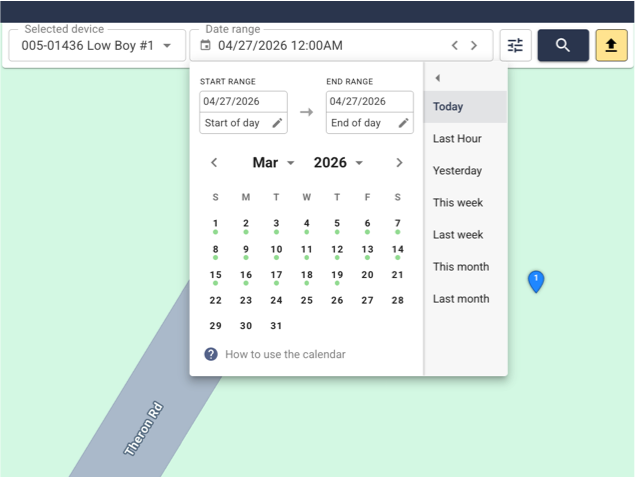
A new visual indication has been added to the Calendar. This indicates when the selected device has been active. It works as follows.
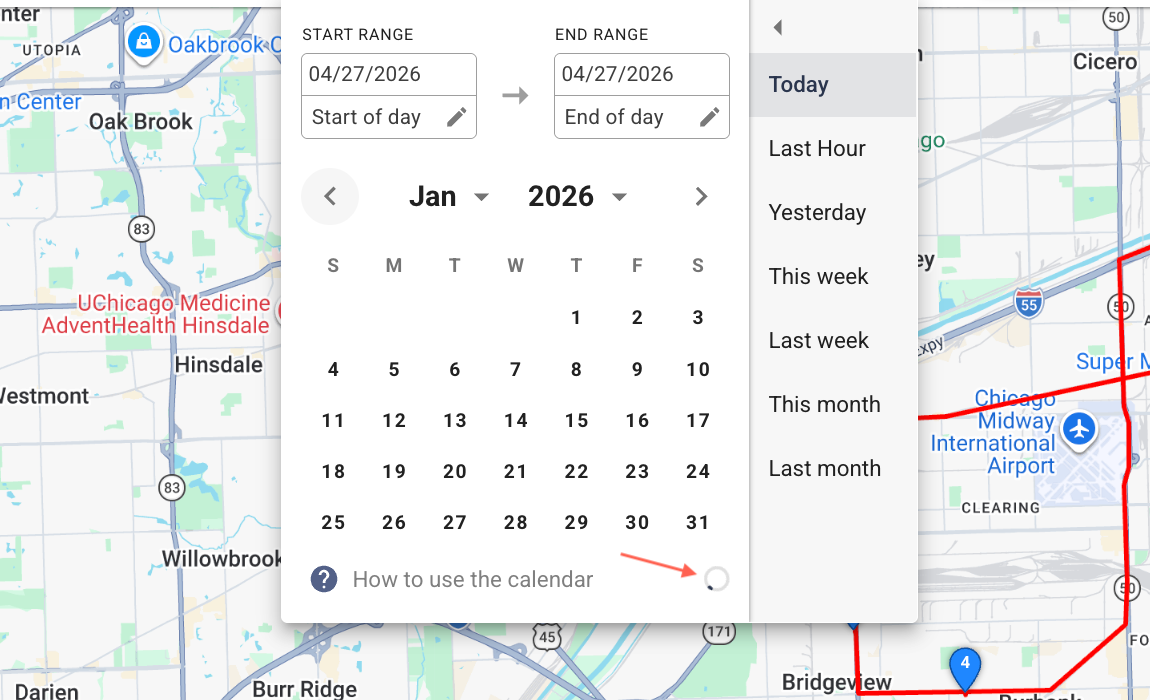
Upon opening the calendar, you will notice a loading spinner on the bottom right – that indicates that the device history is being fetched from the server.
Shortly after green dots will appear beneath dates for when the device was active.
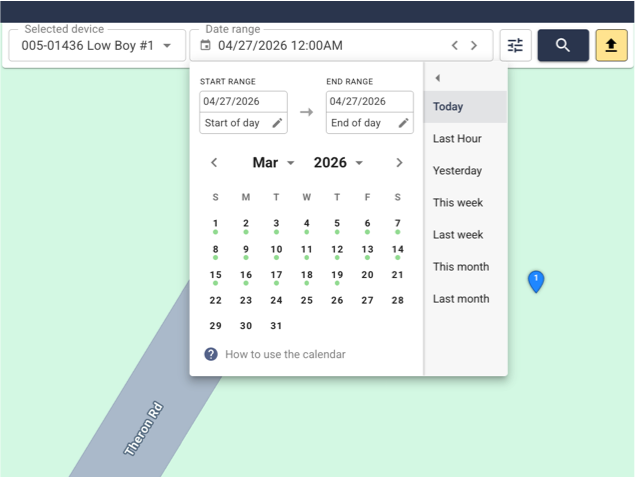
Additionally, there is some information available in the “How to use the calendar” tooltip
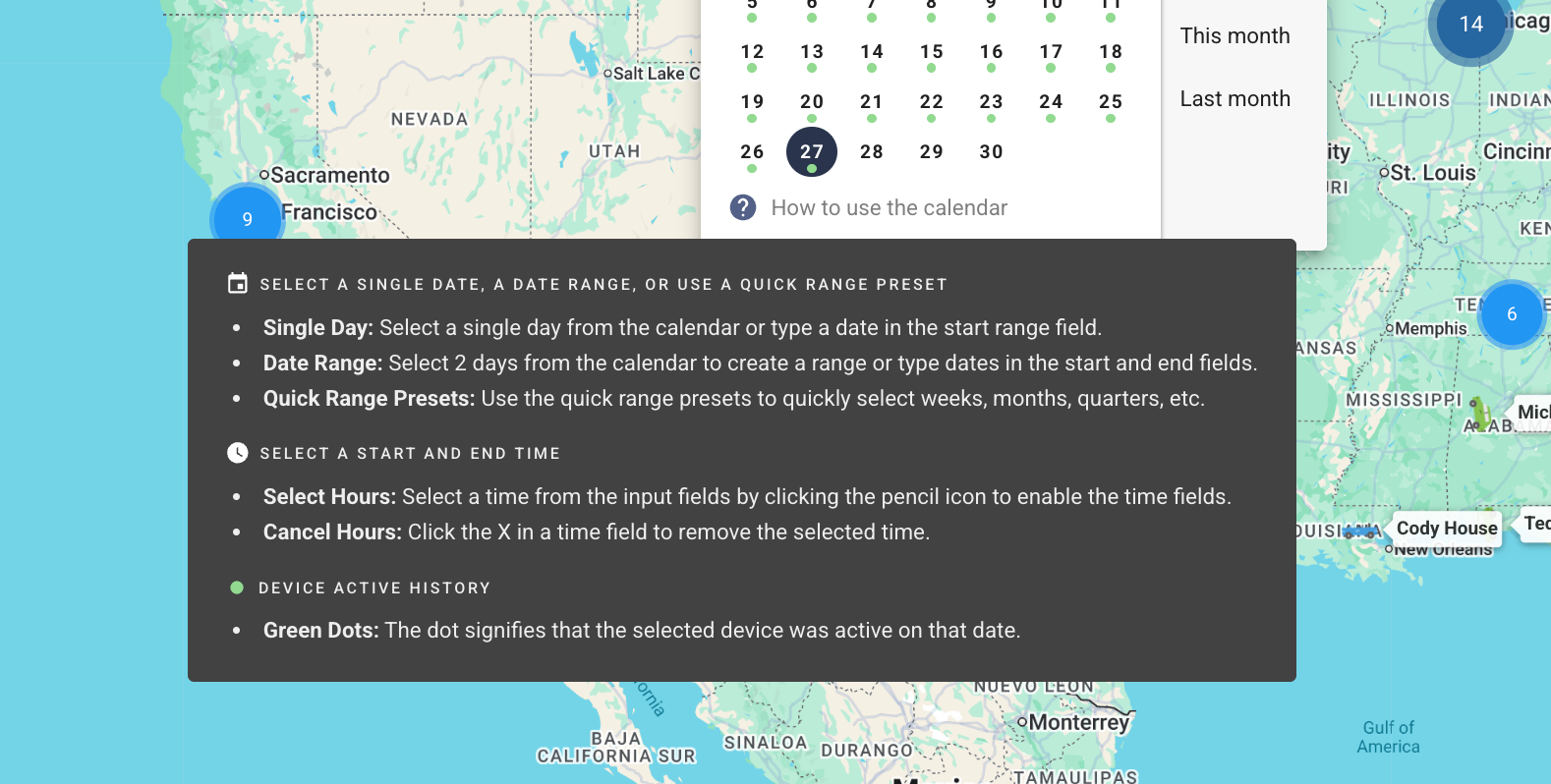
Here’s a short video demonstrating the feature in action: https://www.loom.com/share/11c0a9461feb43a78d6ae703478ce5e4
April 29th, 2026

We’ve added access to Caterpillar equipment through our platform, allowing you to view trucks, machinery, and assets all in one place—so you can manage everything without ever leaving the platform.
April 24th, 2026

We added the ability to view Komatsu equipment within our platform so that you can see everything, trucks, equipment, all in one place, so you don't have to leave it.
April 1st, 2026
Improved
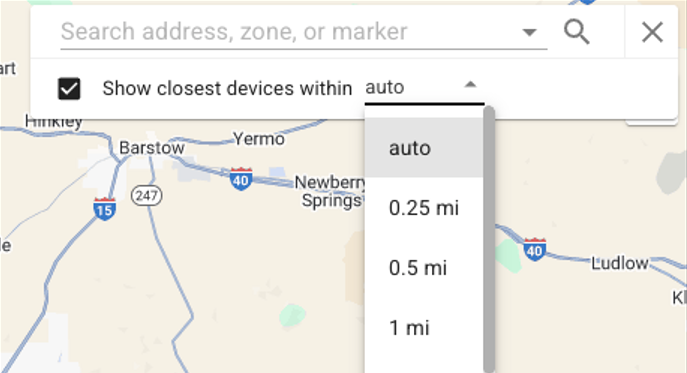
We made some improvements to the address search box. Finding the nearest device is now easy!
Your distance setting is now saved
→ No need to reselect it every time.Click a device → map moves to it
→ Just click the name in the table, and the map will jump right to that device.New “Show Table by Default” option
→ Click the checkbox once, and the table will always show when you search. No extra clicks needed!Smarter search (Auto Distance)
→ Automatically expands the search until at least 10 devices show up
→ Searches up to 200 miles max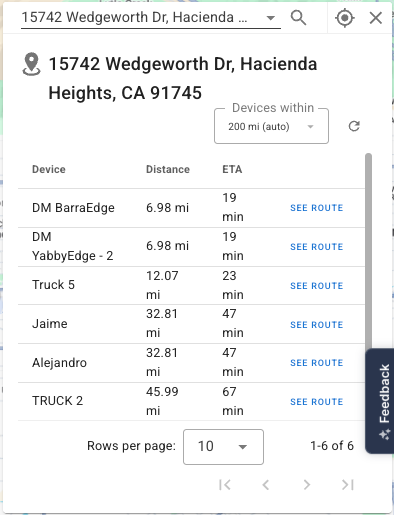
March 27th, 2026
Improved
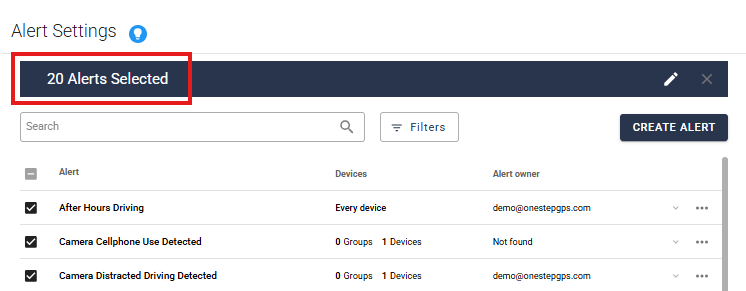
You can now update your alerts in bulk!
In your Alerts tab, there are checkboxes you can select one by one, or a select-all box at the top. You can update 20 alerts at a time.
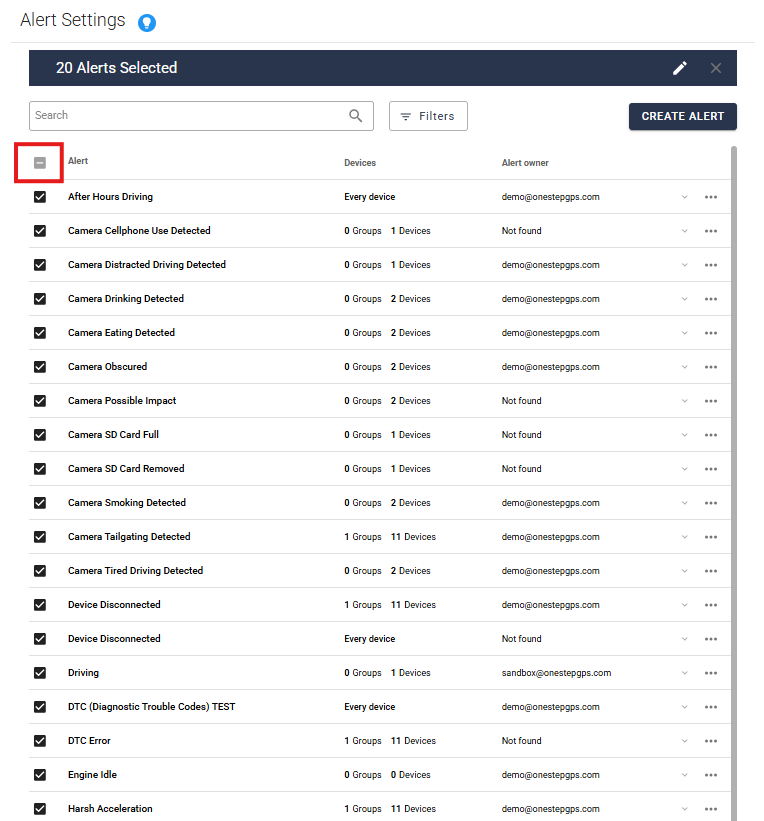
Click the pencil icon to start editing.
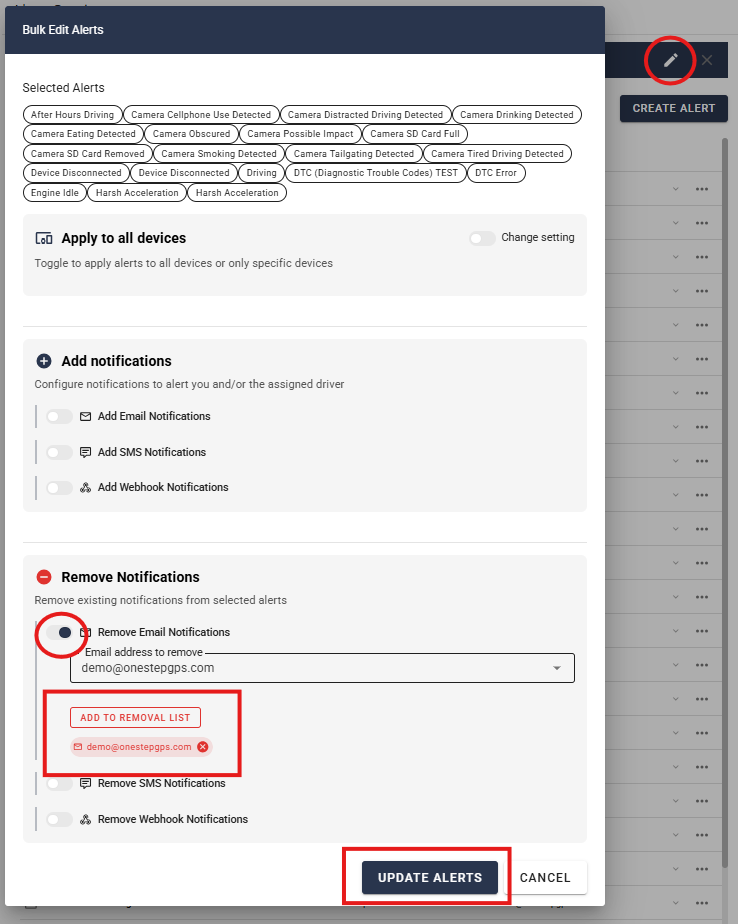
Toggle what you would like to add or remove. In this example, we’re removing an email address from all 20 alerts.
Select the email address you want removed, and click Add to Removal List. Then click Update Alerts.
This will save you so much time!
March 26th, 2026
New
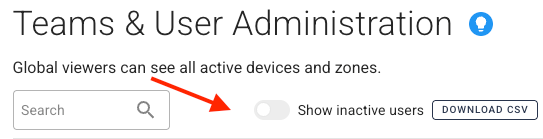
We recently introduced a feature that lets you filter for inactive users on the Teams & Users page.
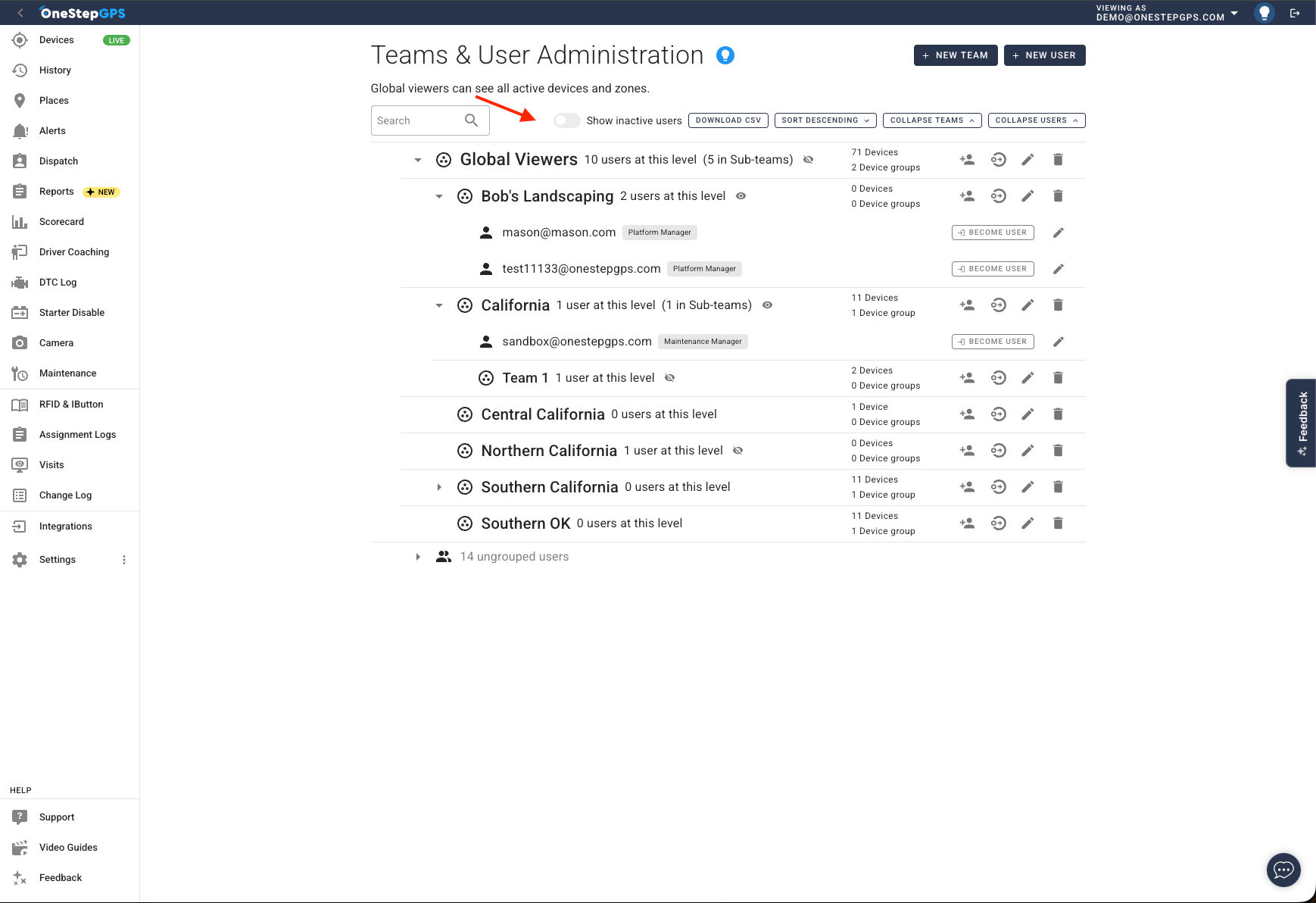
The filter toggle is visible only to administrators or users with the appropriate permissions.
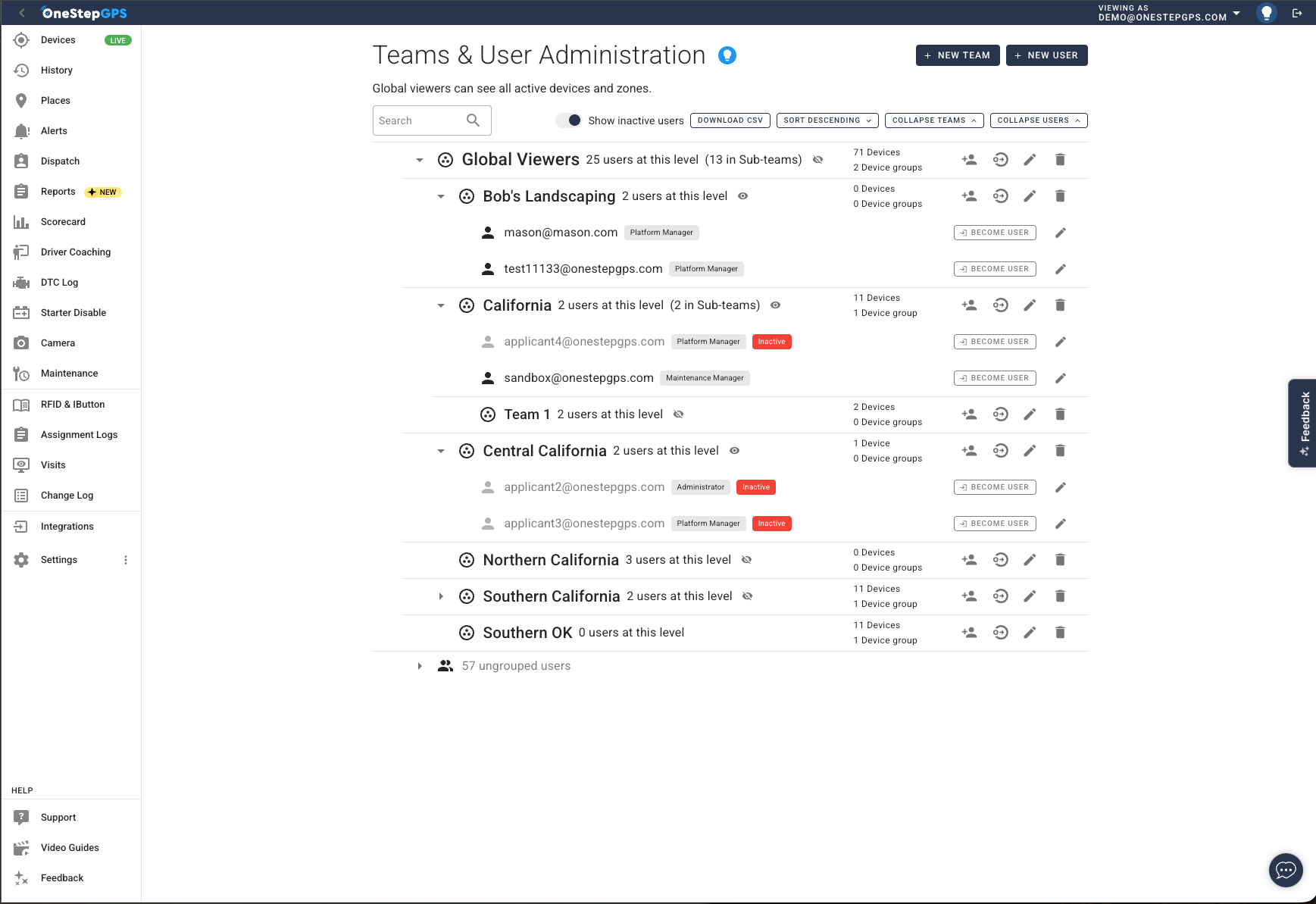
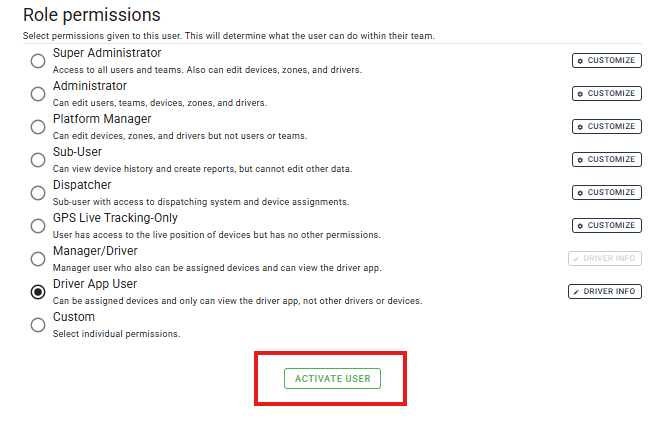
This means you can now activate a previously deactivated user without calling One Step GPS.
March 25th, 2026
New
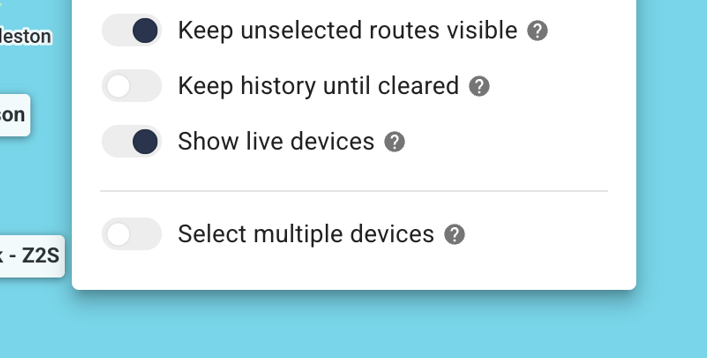
We have added a new history setting called “Show live devices.”
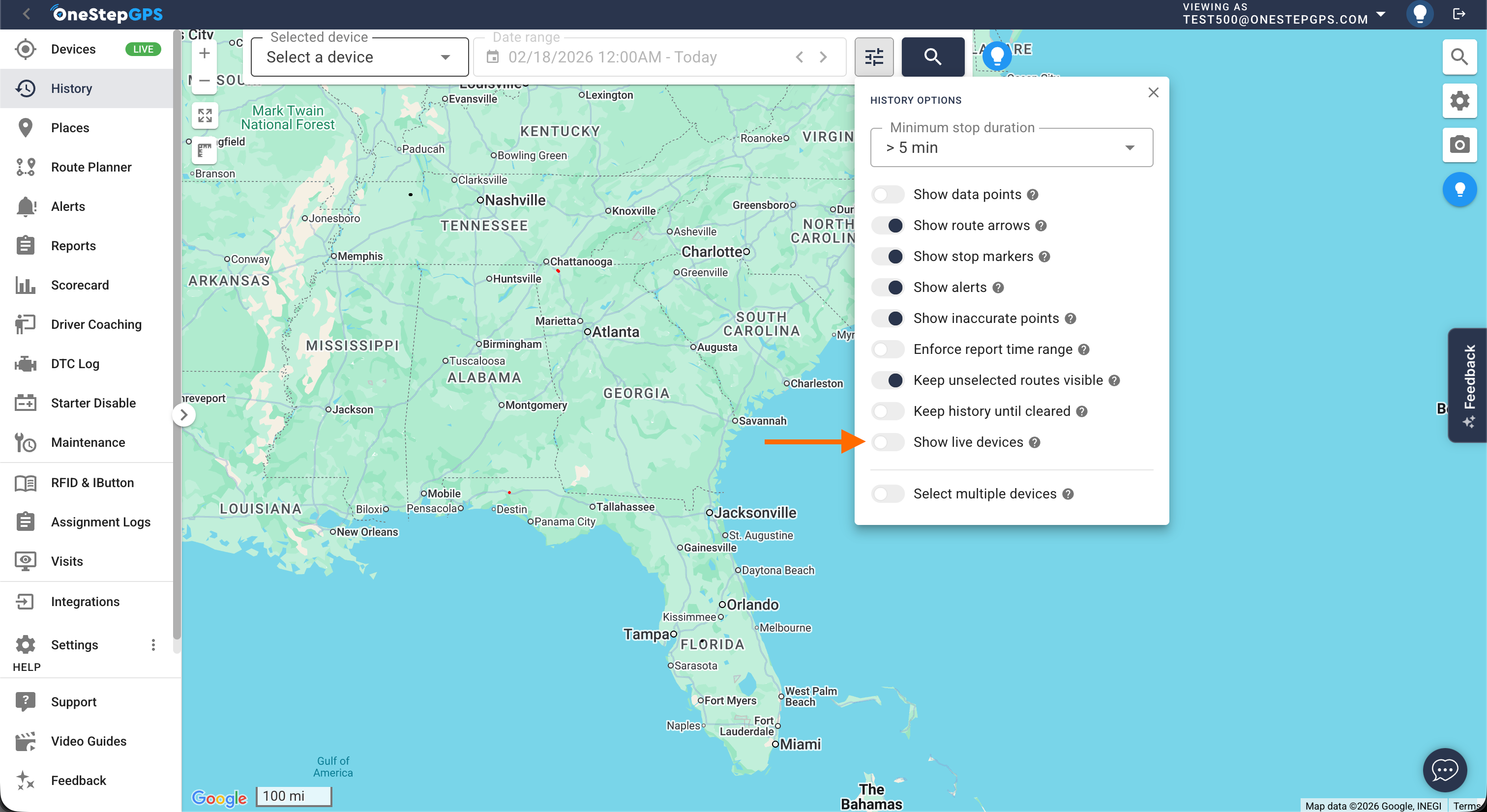
By default, this is toggled off, and users will no longer see live device locations in the history tab. If the old behavior is wanted, the setting can be toggled on to see the live locations as before.
February 2nd, 2026
Improved
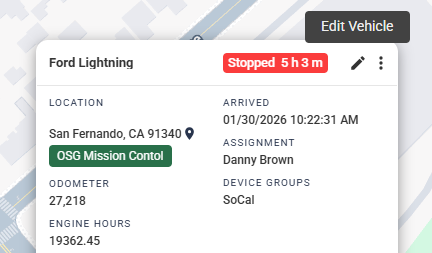
We've added the ability to edit device information in the device pop-ups on the map, so users don't have to navigate to the full device settings page.
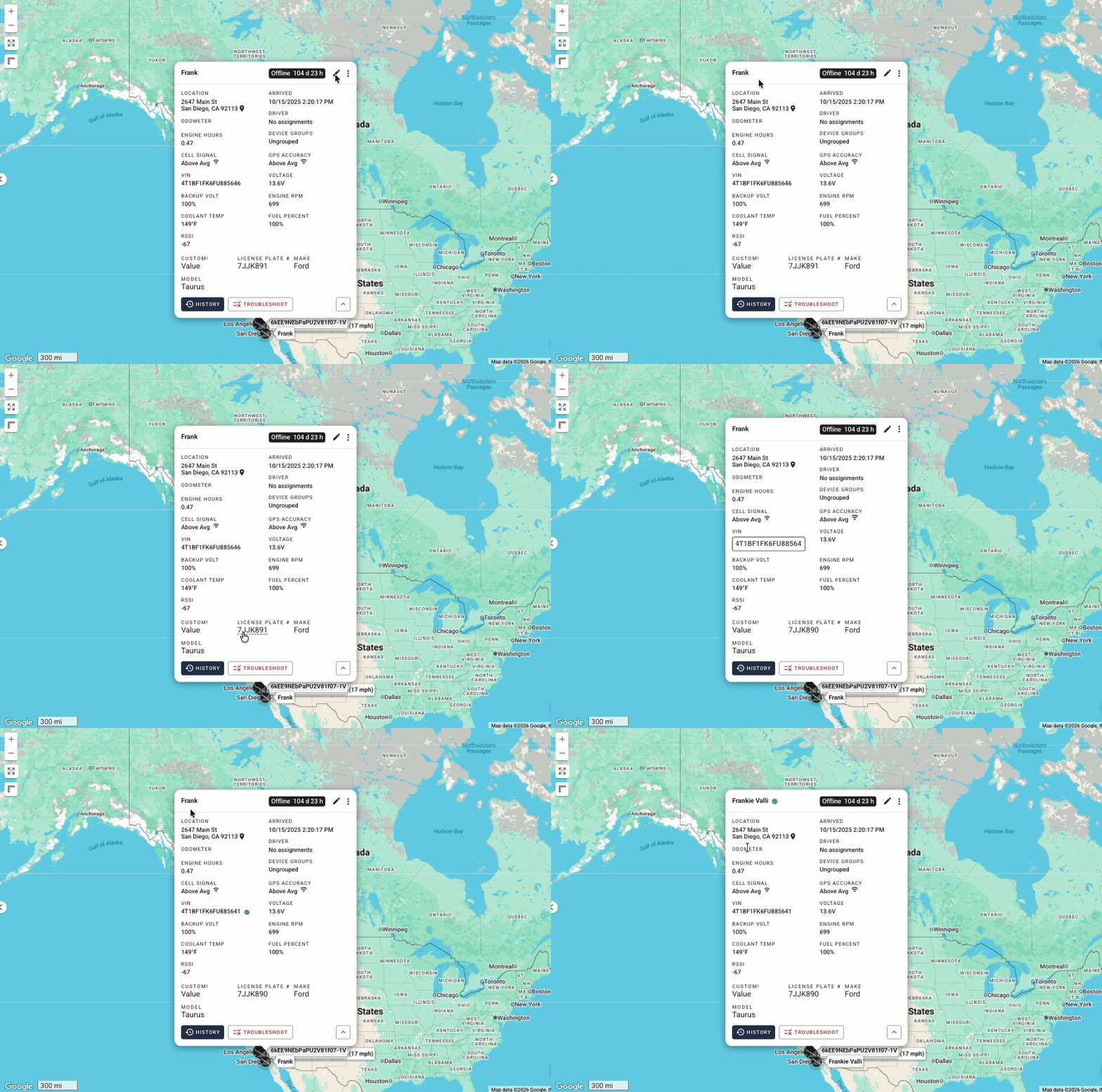
What's New:
Edit Mode Toggle: A new pencil icon appears in the pop-up header. Clicking it enters "edit mode," which highlights all editable fields.
Editable Fields: (Desktop Popup)
Display Name - Click to edit directly in the pop-up
VIN - Click to edit (shows confirmation dialog since this may override device-reported VIN)
Custom Fields - Click any custom field value to edit
Odometer - Click to open the odometer settings dialog
Engine Hours - Click to open the engine hours settings dialog
Driver Assignment - Click to open the driver assignment dialog
Device Groups - Click to open the device groups dialog
Mobile Support: The mobile device panel also supports easy editing:
Display Name, VIN, and Custom Fields work the same as desktop
Odometer and Engine Hours use a "tap to reveal pencil" pattern... tap the value, then tap the pencil icon that appears or the value again
January 9th, 2026
New
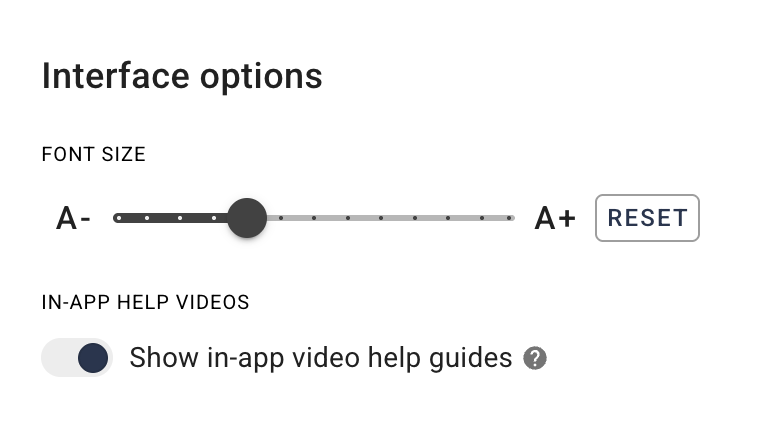
Adjust the font size between 75% to 150% to improve readability, all without needing to zoom in or out.
You’ll find this option in your User Display Settings.

November 4th, 2025
New
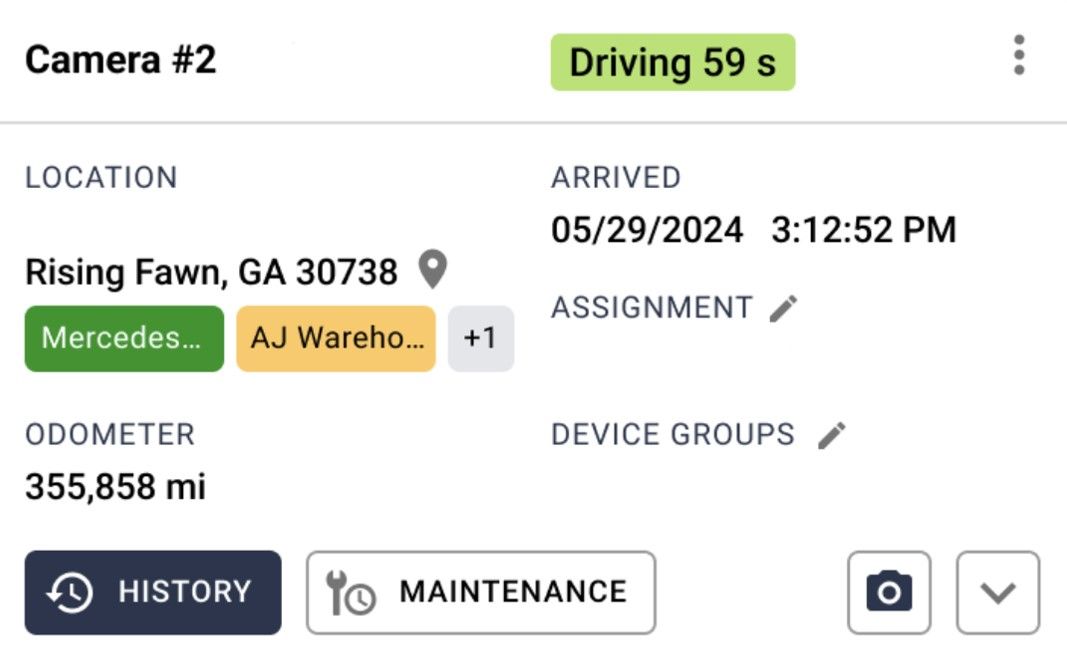
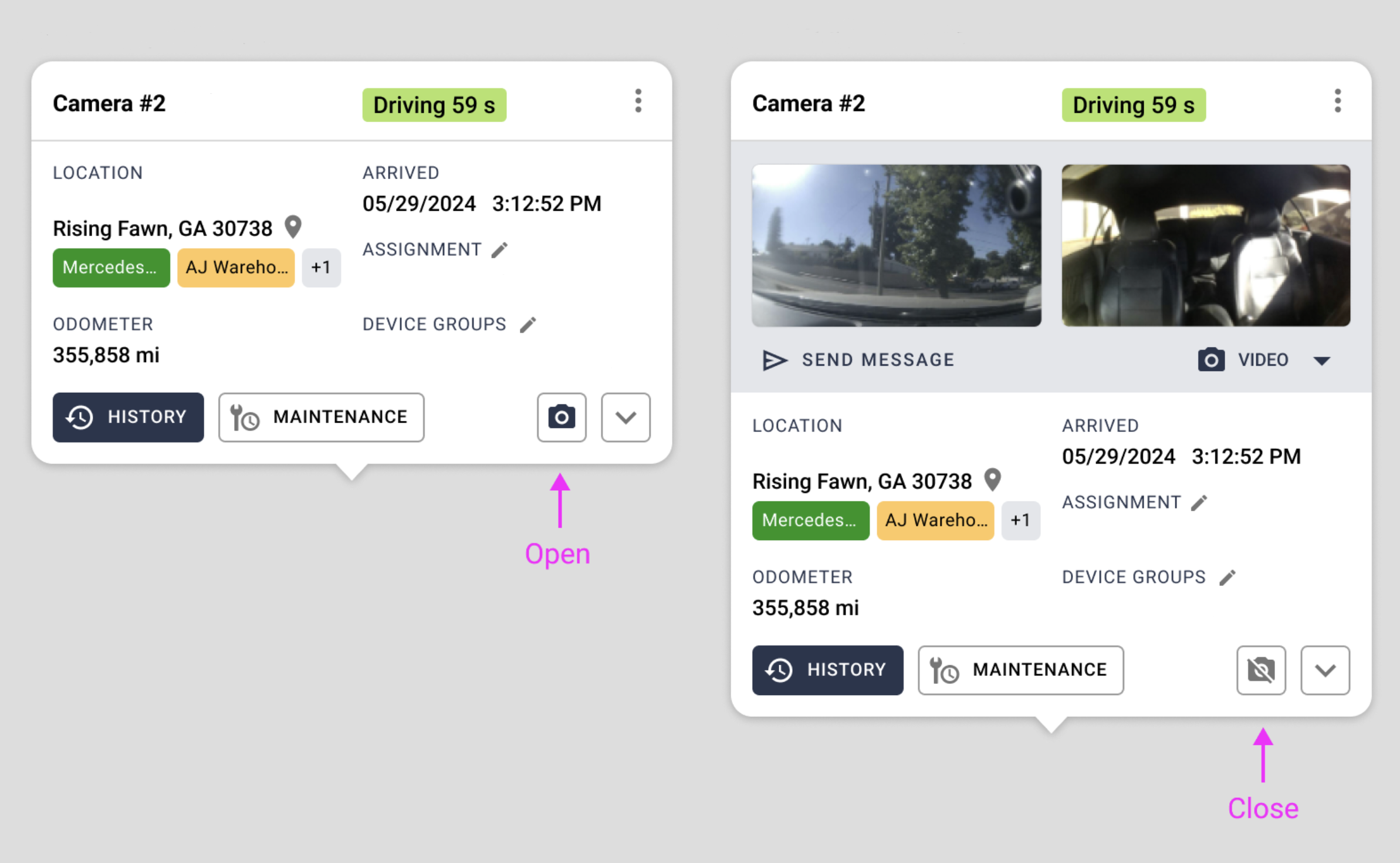
We recently released a feature to show or hide the camera preview on the device pop-up. You can now choose to toggle off camera previews (they are on by default), and the system will remember the preference. The button to toggle the camera preview on or off is located in the lower right corner of the device pop-up.